
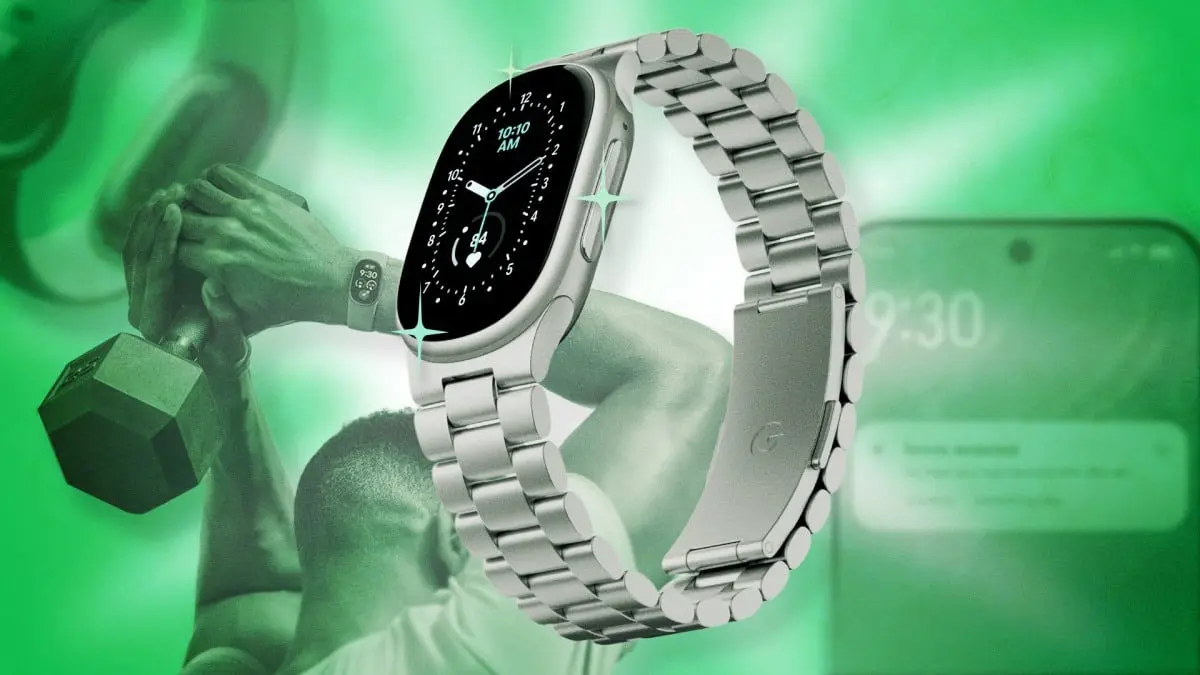
Set up a watch face wardrobe from your phone
While the Fitbit Edge hardware is streamlined, the software platform offers substantial flexibility in visual presentation. Customization options for watch faces, color schemes, and complications are not immediately obvious when interacting solely with the physical device, but the companion mobile application unlocks a robust library of aesthetic choices.
Users can access this customization ecosystem by interacting directly with the tracker’s display. A long-press on the middle of the active watch face initiates a carousel displaying previously selected faces. Navigating to the final screen in this rotation reveals a direct shortcut to the watch face library on the user’s paired smartphone, bypassing the need to hunt through deep menu structures in the app settings. Alternatively, navigating manually to device settings within the application allows users to tap through to the complete clock gallery.
Once a preferred watch face is installed, further personalization is available by selecting options to adjust color palettes and specific data complications, such as daily step counts or current weather conditions. Although certain legacy sharing features within the customization interface may encounter broken routing links to older web platforms, the core personalization framework remains a robust tool for tailoring the device’s appearance to individual preferences.
Flip it around so you don’t press the button accidentally
Ergonomic considerations play a major role in wearable comfort, and the Fitbit Edge is manufactured with the standard expectation that users will prefer the physical side button positioned on the right side of the wrist. However, individual wearing habits, such as pairing the tracker with traditional jewelry, wearing the band lower on the forearm, or natural hand flexing, can occasionally lead to accidental button presses.
To accommodate diverse physical preferences, the Google Health application provides an orientation adjustment feature. By navigating to device preferences within the app settings, users can alter the tracker orientation to position the button on the left side of the device instead of the right. Because this setting inverts the display, users must physically unbuckle and rotate the band to maintain proper viewing alignment.
Turn off the AI insights
Artificial intelligence integration has become a central pillar of modern health applications, yet automated coaching systems can sometimes generate more noise than value. Within the Google Health ecosystem, the AI-powered Health Coach functions as a polarizing feature, offering both comprehensive data analysis and frequent, unprompted notifications.
Recognizing user desire for control over these automated interruptions, platform updates have introduced granular settings management. Users can mute proactive insights and conversational notifications while retaining on-demand access to the underlying artificial intelligence. By accessing profile settings and adjusting coaching preferences to disable continuous insight generation, the application ceases its persistent daytime summaries. Despite this adjustment, the manual query button remains fully accessible for users who wish to utilize AI assistance for specific inquiries or dietary and exercise logging.
Broadcast your heart rate to Strava for laps and maps
While the native workout application on the Fitbit Edge maintains a minimalist design philosophy without deep interface customization, the device supports ecosystem interoperability to expand its utility during exercise sessions. Users seeking advanced mapping and detailed lap tracking can leverage the tracker’s heart rate broadcasting capability.
Activating this feature requires swiping down from the top of the Fitbit Edge display and selecting the dedicated broadcasting icon. Once initiated, external fitness applications—such as Strava—can recognize the Fitbit as a peripheral heart rate sensor during workout recording. This integration allows athletes to utilize comprehensive mapping software, view real-time location data, monitor previous lap times, and access physical lap-marking controls on their mobile devices while relying on the Fitbit Edge for continuous biometric monitoring.
Make it stop overcounting your steps
Sensor sensitivity has historically been a point of discussion within the wearable technology sector, with pedometers occasionally registering hand and arm gestures as steps. To mitigate potential discrepancies in activity metrics, the Fitbit platform includes wrist placement calibration settings.
Users who wear their tracker on their dominant hand can adjust the device preference settings within the mobile application to reflect this orientation, which alters the algorithm’s sensitivity threshold. Interestingly, some wearers of non-dominant hand placements also utilize this adjustment to intentionally calibrate the device toward a slightly more conservative step count, compensating for natural upper body movement throughout the day.
Save battery by changing your GPS settings
Power management is a critical factor in wearable longevity, and the Fitbit Edge offers flexible location-tracking configurations to balance battery preservation with positional accuracy. By default, the device dynamically switches between its internal GPS hardware and the location services of a connected smartphone depending on environmental and connection variables.
Users can manually override this automated switching behavior through the device preference menu in the mobile app. Individuals who consistently carry their smartphones during outdoor activities can configure the tracker to exclusively utilize the phone’s GPS, significantly reducing power consumption on the wearable itself. Conversely, users who prefer untethered exercise can restrict the device to its internal hardware. Older smartphone models may benefit from the built-in GPS for enhanced distance and pace calculations, whereas newer mobile devices allow users to dictate location tracking based entirely on personal battery conservation priorities.
Swap with the Fitbit Air
Ecosystem versatility has expanded alongside multi-device application support, allowing a single user account to interface with multiple Fitbit hardware models seamlessly. Users who alternate between wearing a screen-based tracker and screenless alternatives—such as the Fitbit Air, or compatible Pixel Watch devices—can transition between different form factors without performing manual re-pairing procedures. Setting up multiple devices within the application enables immediate, context-dependent usage based on daily style or functional requirements.
Set up magnification so you can see what’s on that tiny screen
Compact hardware dimensions occasionally present readability challenges for users with specific visual accessibility needs. To address this, the Fitbit Edge software includes a dedicated magnification utility housed within the device preference settings.
Enabling this feature allows users to execute a triple-tap gesture—consisting of three rapid touches with a single finger—to instantly enlarge the active display interface. Once magnified, users can pan across the screen using touch input to inspect specific complications, such as individual digits within daily step totals or weather readouts. The magnification settings also offer choices between standard 2x and 3x zoom levels, with an identical triple-tap gesture returning the display to its native scale.
Charge it for five minutes a day
Battery anxiety is a common friction point for wearable technology users, but rapid-charging technology significantly alters daily maintenance routines. Utilizing high-speed charging architecture comparable to contemporary smartwatch designs, the Fitbit Edge can acquire substantial operational power in brief intervals.
Manufacturer specifications and field tests indicate that a five-minute charge provides sufficient energy to sustain the device for an entire day of standard use under normal conditions. While features like the always-on display increase power draw and necessitate more frequent charging intervals, the velocity of the charging system permits brief, routine power replenishments that eliminate the need for extended tethered charging sessions.
Show offline workouts to your “Coachâ€
Manual data entry and third-party workout logs can sometimes remain siloed away from centralized health dashboards. To bridge this gap, users can incorporate external workout records into their centralized application history using visual input.
By capturing screenshots from specialized training applications or photographing physical workout journals, users can submit these images directly through the application’s coaching interface. Prompting the system to associate the visual record with a specific past training session allows the underlying software to parse and log the exercises within the primary fitness tracking tab, ensuring a unified archive of physical activity regardless of where the workout was originally recorded.