
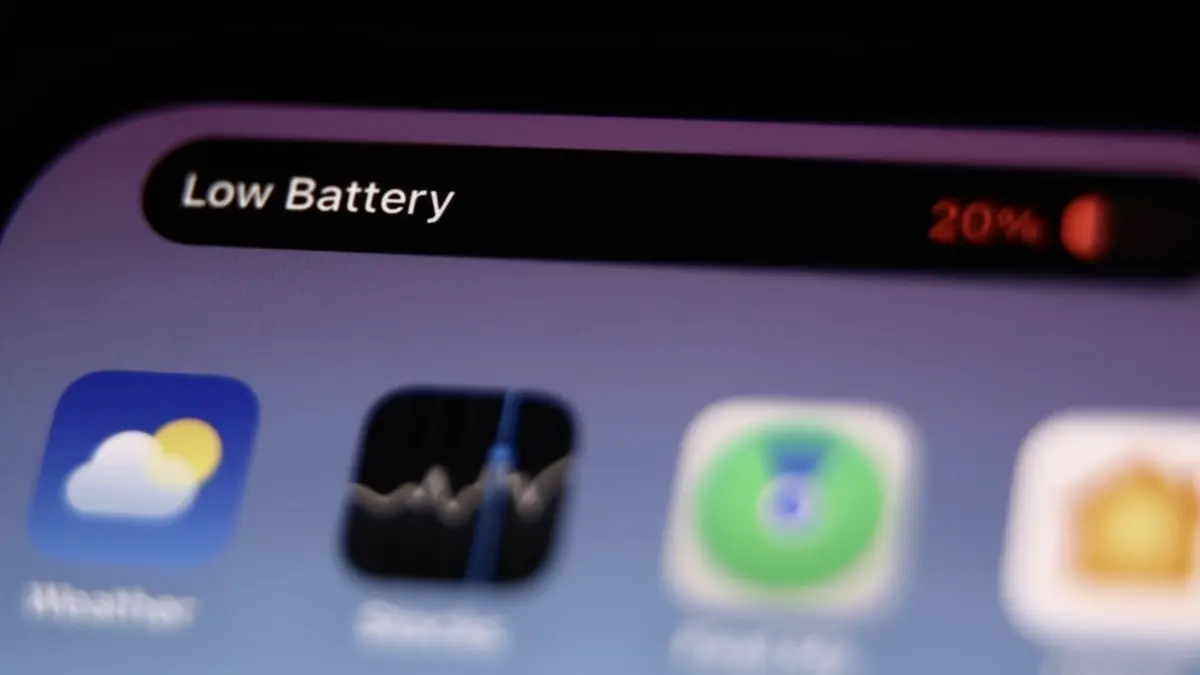
While experiences vary across different device models and usage habits—with some users noting minimal changes compared to previous software iterations—a significant portion of the user base is convinced that the update has introduced a detrimental background strain. After weeks of troubleshooting and diagnostic sharing within online tech communities, many frustrated users believe they have pinpointed the primary driver behind the unexpected power drain: a newly expanded networking tool known as Connectivity Assist.
What is Connectivity Assist?
The underlying philosophy behind Connectivity Assist appears noble on the surface, designed to address one of the most frustrating aspects of mobile connectivity: sluggish internet performance when a Wi-Fi signal begins to degrade. Traditionally, when a user moves toward the outer perimeter of a wireless router’s range, their device attempts to cling stubbornly to the weakening signal. This often results in painfully slow loading times, frozen web pages, and unresponsive applications before the operating system finally acknowledges the dropped connection and hands over the workload to cellular data.
To eliminate this frustrating dead zone experience, Connectivity Assist is engineered to dynamically tap into cellular data the exact moment a Wi-Fi connection begins to grow unstable. In theory, this seamless bridge ensures that users do not have to endure interrupted data streams or hanging connections when transitioning away from a wireless network. Once the user has moved completely out of range, the device naturally reverts to operating exclusively on cellular data, maintaining a consistent user experience without manual intervention.
However, this mechanism represents a notable evolution from previous iterations found in older operating system versions. In prior software builds, Apple utilized a simpler feature known as Wi-Fi Assist. That legacy feature functioned primarily as an either-or switch, abruptly severing or superseding the wireless connection to jump over to cellular networks only when the primary signal crossed a specific threshold of weakness.
With the introduction of the updated architecture, however, technical observations suggest that the system may handle simultaneous networking tasks differently. Rather than merely swapping one network for another, the updated framework appears capable of interacting with both networks concurrently under certain conditions. Tech analysts and observant users suggest that this concurrent network management and the continuous background evaluation required to maintain the hybrid state may play a substantial role in accelerating battery consumption.

Furthermore, the updated feature introduces another architectural shift that has drawn scrutiny from privacy-conscious users and network administrators: the handling of Domain Name System, or DNS, requests. Unlike its predecessor, Connectivity Assist actively routes DNS queries over cellular data connections even when connected to a local wireless network under specific circumstances. This behavior can inadvertently bypass rules and filters established by local ad-blocking configurations or third-party privacy utilities designed to intercept unwanted tracking scripts and pop-up advertisements.
Because of this specific routing behavior, technology providers and security services have issued advisories suggesting that users who rely on active ad blockers consider disabling the feature. Consequently, if an iPhone is continuously dispatching background DNS requests over cellular channels while actively bypassing established local filters, the resulting persistent network activity could easily translate into an invisible, steady drain on the device’s battery reserves over the course of a day.
User Reports and Investigations Into Battery Drain
The widespread discussion surrounding the feature gained significant traction after anecdotal reports and diagnostic testing began circulating on social media and dedicated enthusiast forums. A prominent discussion on the popular r/iPhone community detailed how a user experienced a drastic reduction in usable screen-on time following the software upgrade. According to the user, a device maintaining a healthy battery capacity experienced a drop in operational longevity, lasting only a fraction of its usual duration before requiring a recharge.
Upon toggling off the newly introduced networking setting, the user reported an immediate and noticeable recovery in daily battery longevity, with operational hours returning closer to expected benchmarks. Other contributors to the discussion echoed these observations, with some participants noting that disabling the feature also seemed to mitigate unrelated hardware symptoms, such as intermittent device warming during light usage tasks. While these accounts remain largely anecdotal and do not represent controlled laboratory testing across every hardware configuration, the sheer volume of corroborating user experiences has turned the setting into a focal point for troubleshooting performance grievances.
For device owners eager to test whether the networking feature is contributing to their power management challenges, Apple provides mechanisms to adjust these settings according to individual preferences. Users seeking to retain the functionality while mitigating potential power loss in specific environments can disable the tool on a localized, per-network basis. By navigating through the primary system settings to the wireless configuration menu and selecting the detailed information prompt associated with a specific saved network, individuals can locate a dedicated toggle to deactivate the assistant for that particular connection alone. This granular approach allows users to prevent accelerated battery consumption in frequently visited locations where wireless signals might fluctuate, such as local cafes or public spaces.
Alternatively, users who prefer a broader approach can choose to disable the capability globally across the entire operating system by adjusting the master switch located within the primary wireless network configuration panel. Reviewing this menu often reveals a historical metric indicating the total amount of cellular data consumed by the assistant since its activation or the last system reset. Analysts note that higher data consumption figures displayed in this menu serve as a direct indicator of how frequently the device has relied on the background routing behavior, offering users a tangible metric to determine whether the setting has been actively working in the background and potentially impacting their daily hardware endurance. As software engineers continue to monitor user feedback and analyze performance metrics in the wake of the major update, discussions surrounding mobile efficiency, background connectivity management, and hardware optimization remain a central focus for the Apple ecosystem.